Help
The basics
The three rooms, the editor, saving and undo.
The three rooms and the gear
TableSet has three rooms, always in the same place along the top, and a gear for Settings.
- My Lists holds every list, grouped by establishment.
- Inventory keeps the count of every wine an establishment has.
- Wine Library is the reference shelf of 33,793 wines.
- The gear opens Settings: your account, the display, your data and the accessibility options.
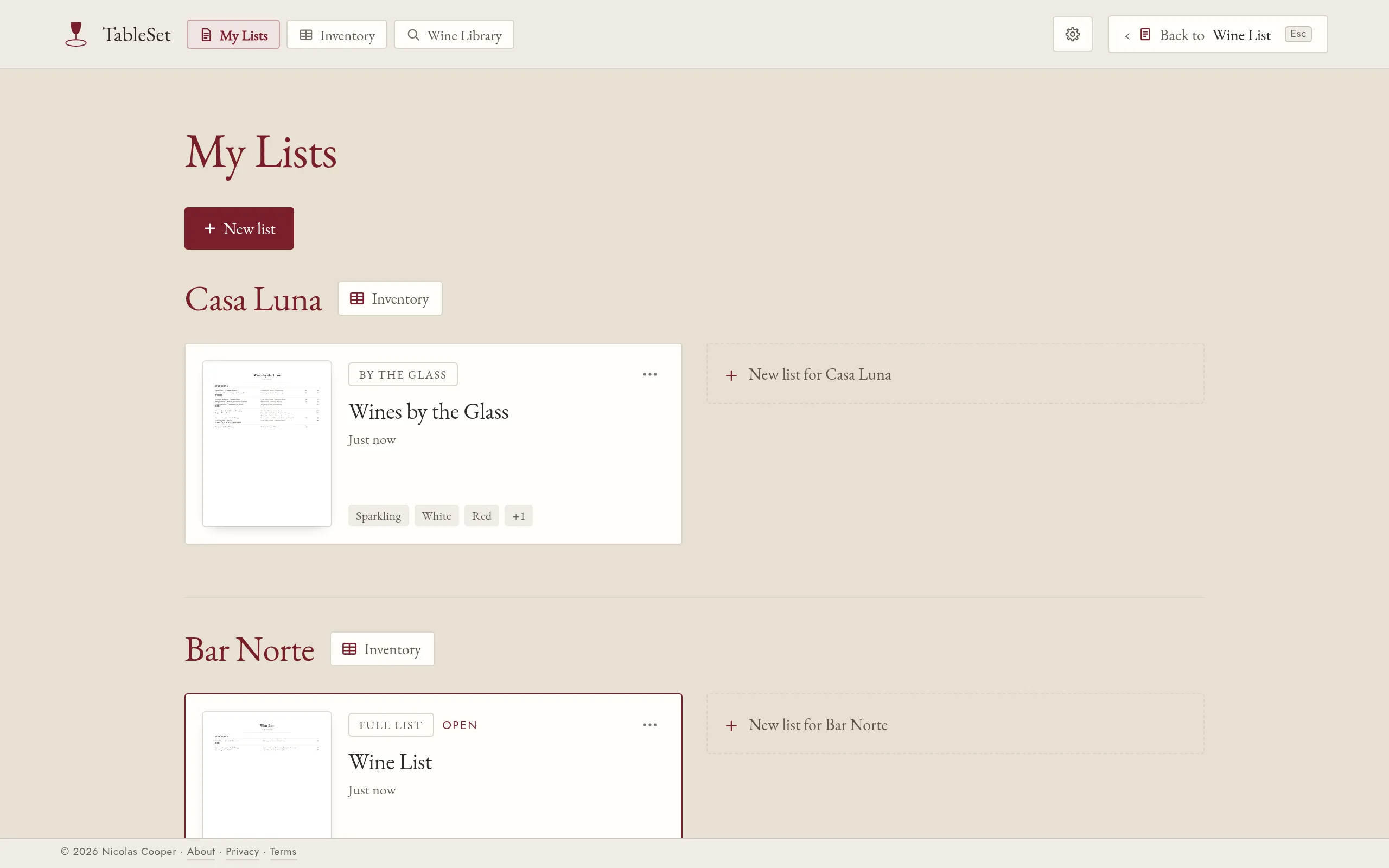
- My Lists holds every list, grouped by establishment.
- Inventory keeps the count of every wine an establishment has.
- Wine Library is the reference shelf of 33,793 wines.
- The gear opens Settings: your account, the display, your data and the accessibility options.
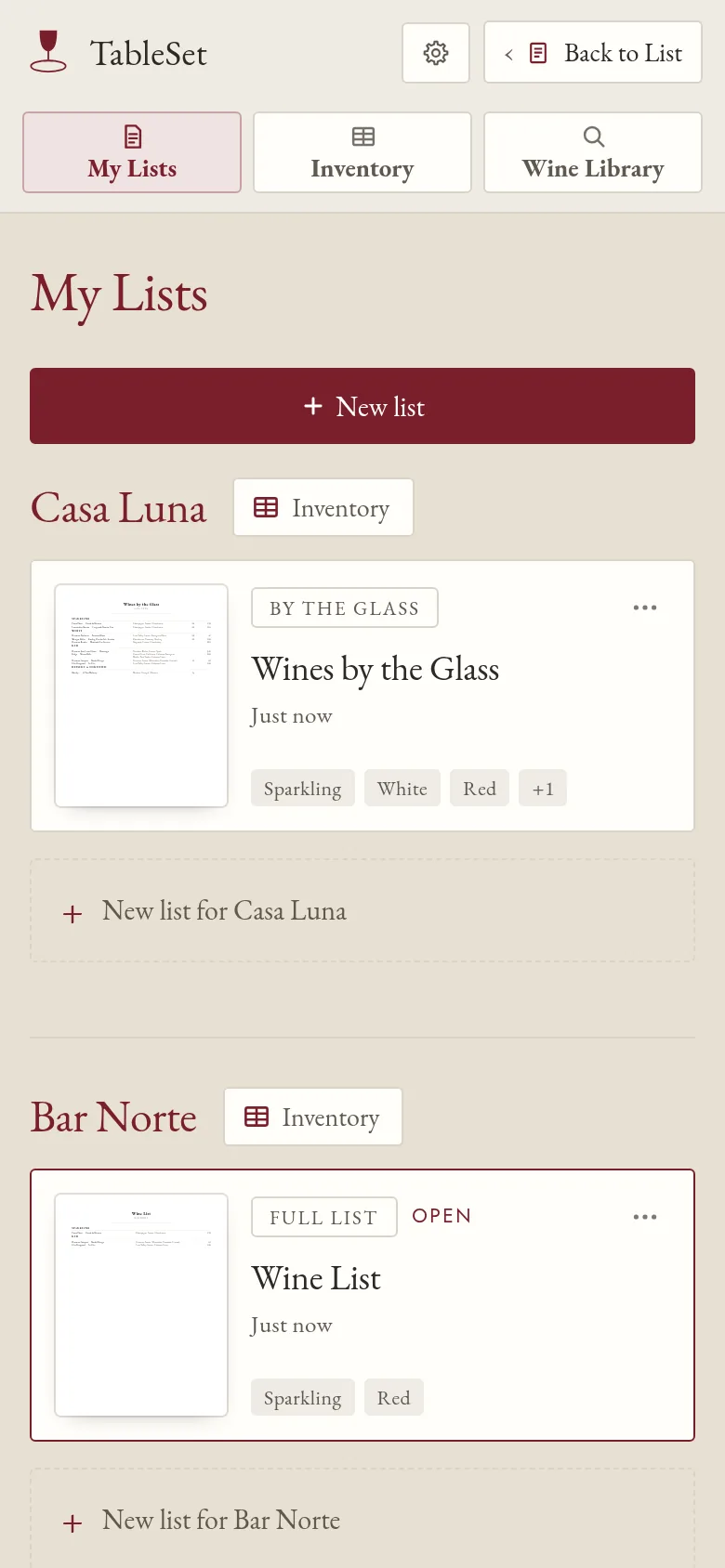
The button at the far right goes back to the list you had open; on a desk, Esc does the same.
Under About, Settings also has Legal and credits: About TableSet, About the founder, Privacy, Terms, Security, Accessibility and Credits.
The editor
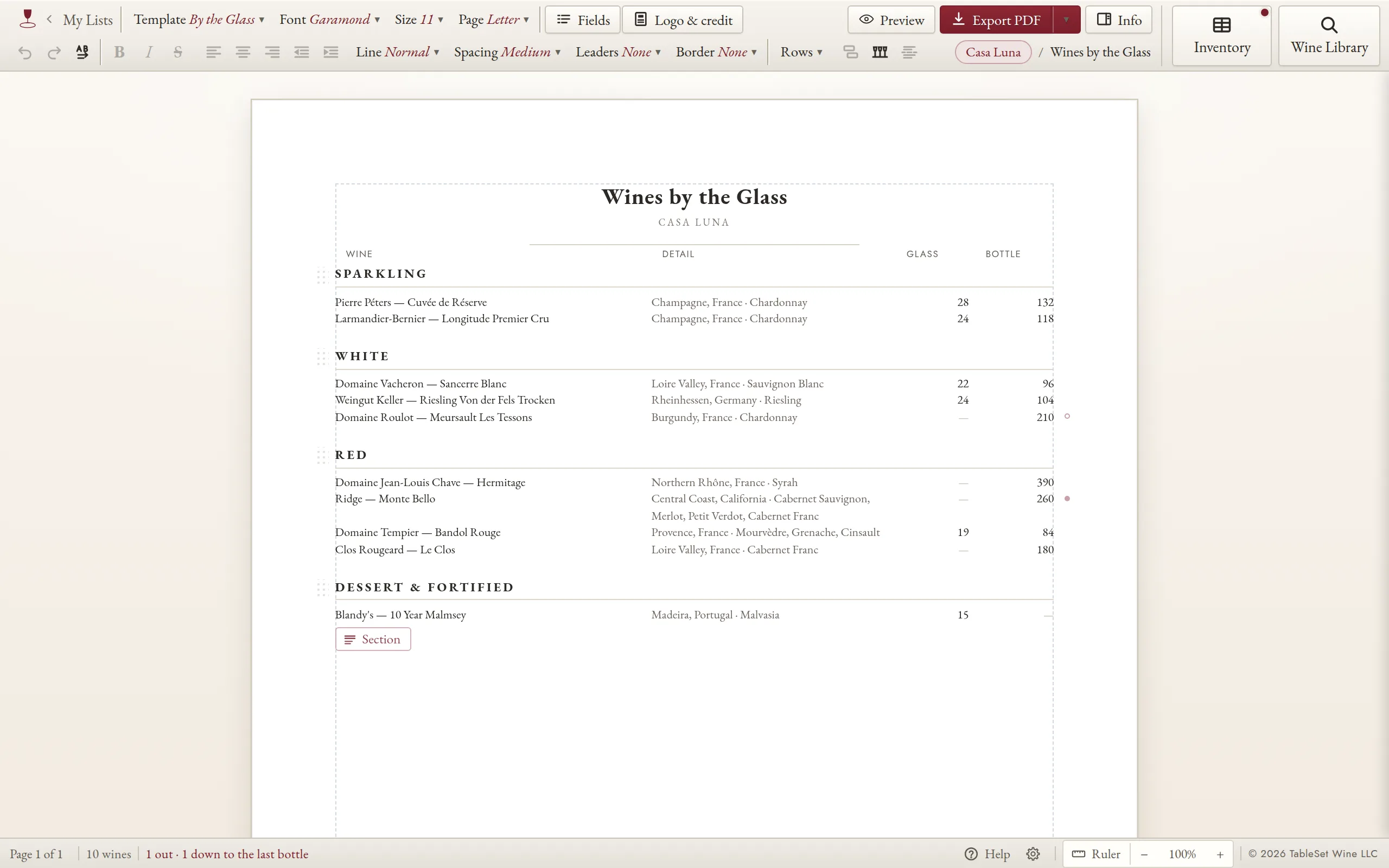
Open a list from My Lists and it opens in the editor. The page on screen is the page that prints.
- The first row of the toolbar sets the whole list: Template, Font, Size, Page, Fields and Logo & credit; Preview and Export PDF sit at the right. Inventory and the Wine Library, the app’s other parts, stand at the far right across both rows.
- The second row works where the cursor is: bold and italic, 86, alignment, indent, Line, Spacing, Leaders, Border, and the row tools.
- Click any words on the page to change them: the title, a section name, a wine, a price.
- The status bar counts the pages and the wines, says which wines are low or out, and holds the gear, the Ruler and the zoom.
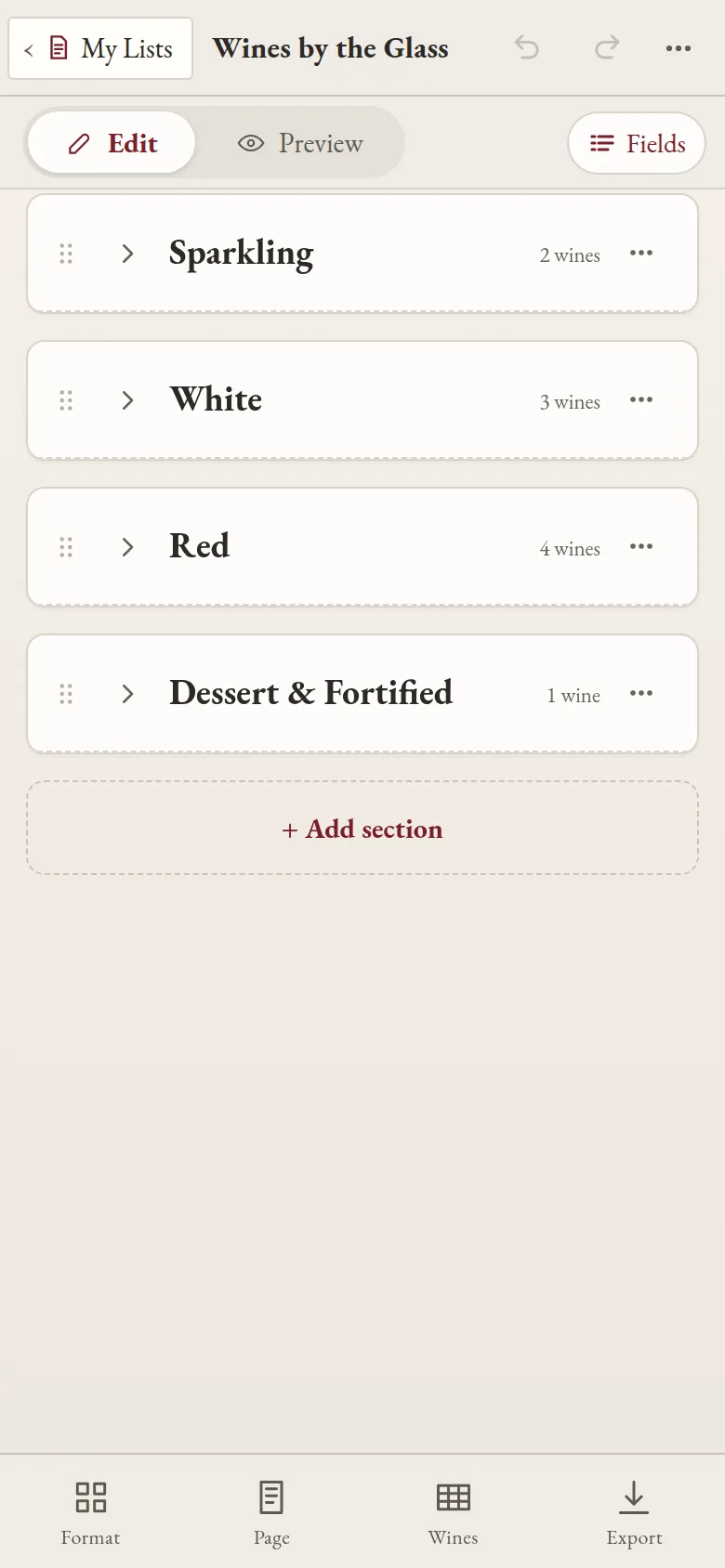
- My Lists takes you back to the shelf.
- Edit and Preview switch between the cards and the printed page.
- Each section is a card; tap one to open it and see its wines.
- The four buttons along the bottom are Format, Page, Wines and Export.
Saving and undo
TableSet saves as you type; there is nothing to press. Signed in, your lists are kept in your account and open on any device where you sign in.
To take back a change, press Ctrl+Z (on a Mac, Command+Z); Ctrl+Shift+Z or Ctrl+Y puts it back. On a phone, use the two arrows in the top bar.