Help · Inventory
Counting
The Inventory, Easy Inventory, a full count, bins, 86 and the marks in the editor.
An establishment’s Inventory
Every wine on an establishment’s lists is filed in its Inventory, grouped by country and then region.
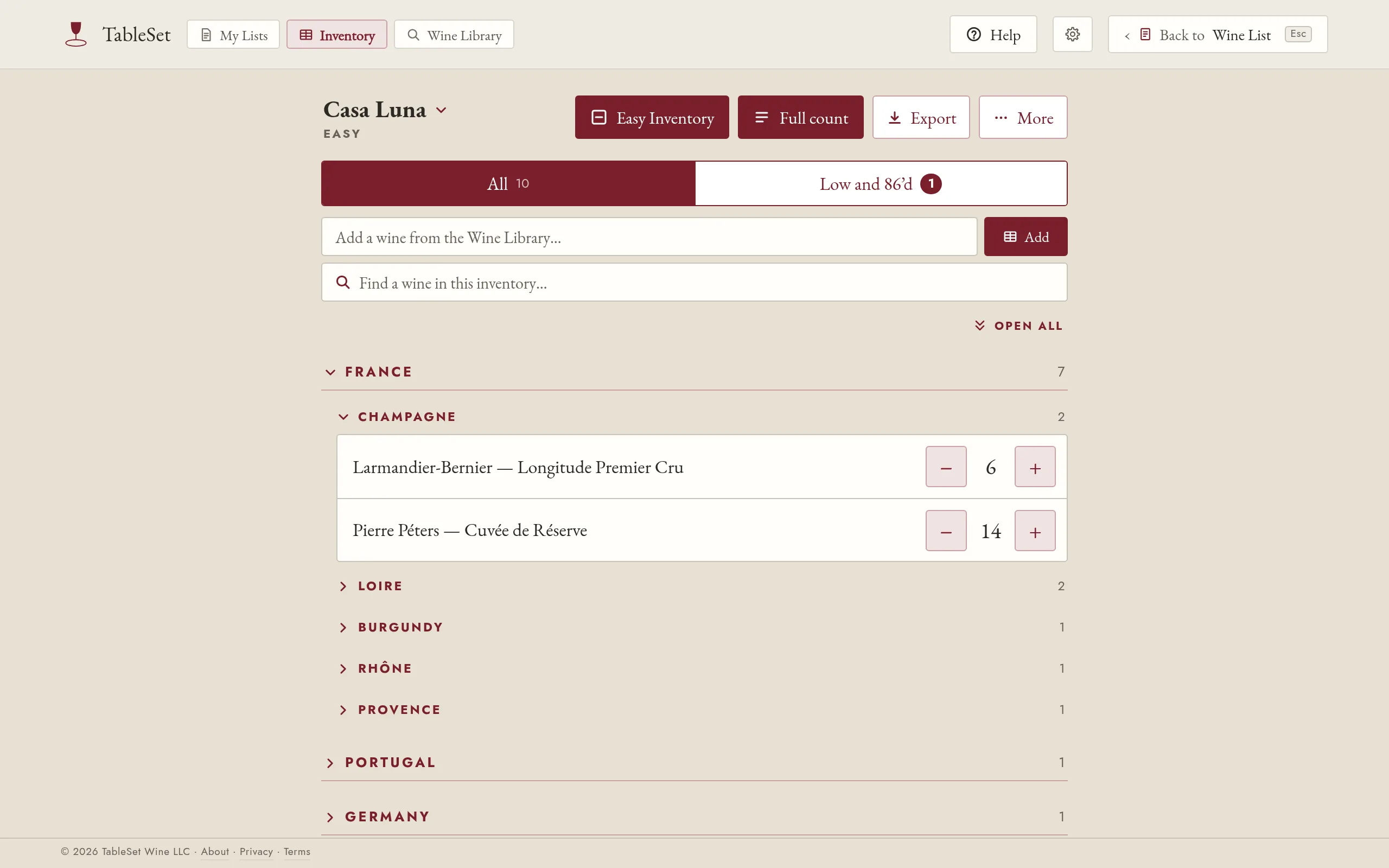
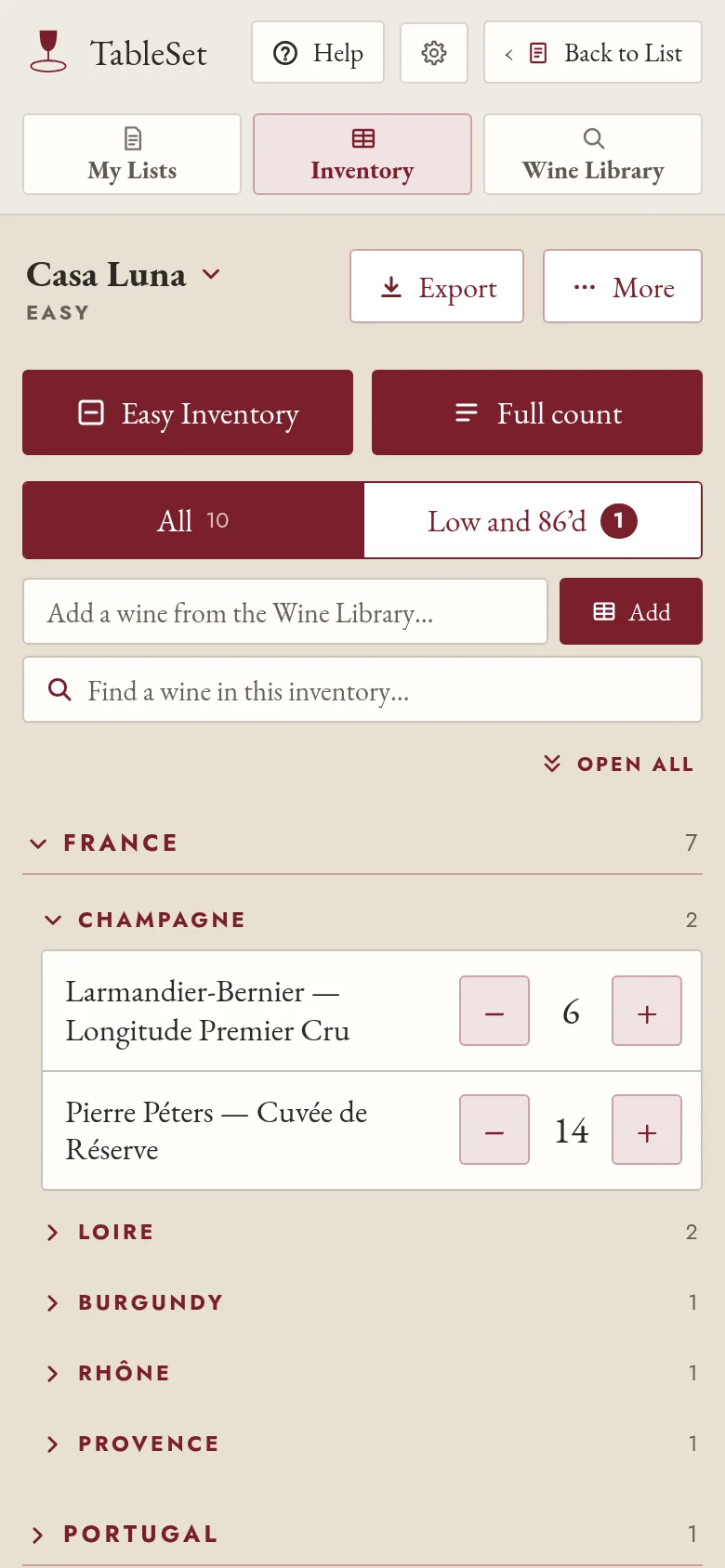
- Easy Inventory opens the counting screen for a shift.
- Full count counts every wine, one at a time.
- Export holds the report, and opens into Print, Ordering and Download.
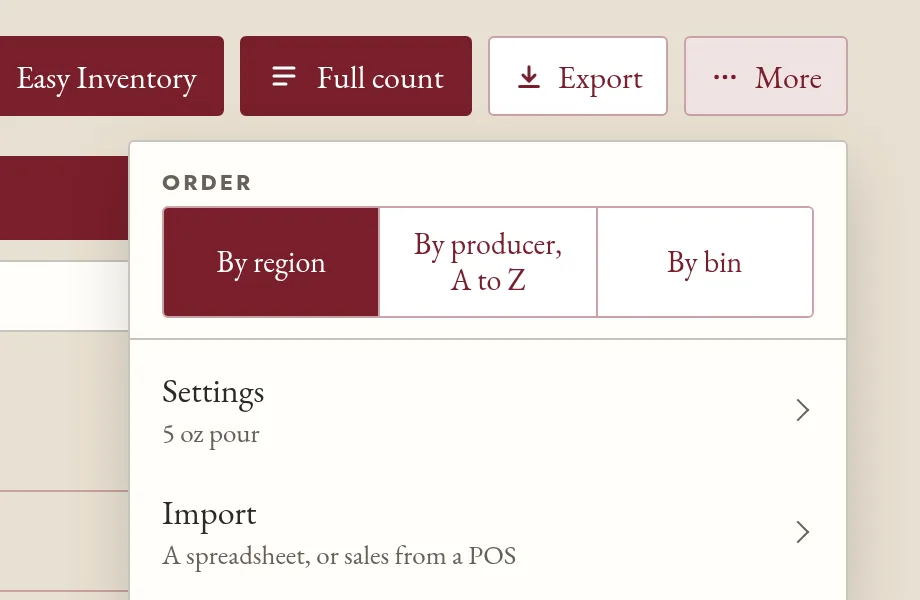
- More holds the order, and opens into Settings and Import.
- Open all opens every group at once; Close all shuts them again.
- Open a group with its arrow; each wine shows its vintage and bin under its name, and minus and plus beside its count.
- Find a wine in this inventory narrows the wines below; Add a wine from the Wine Library searches the Library, and Add files a wine that is not on a list yet.
- Easy Inventory opens the counting screen for a shift.
- Full count counts every wine, one at a time.
- Export holds the report, and opens into Print, Ordering and Download.
- More holds the order, and opens into Settings and Import.
- Open all opens every group at once; Close all shuts them again.
- Open a group with its arrow; each wine shows its vintage and bin under its name, and minus and plus beside its count.
- Find a wine in this inventory narrows the wines below; Add a wine from the Wine Library searches the Library, and Add files a wine that is not on a list yet.
Put a wine on a list
- Tap a wine in Inventory to open its page.
- Under On these lists, press Add to a list and choose a list. A list the wine is already on says On this list.
- The wine goes to the end of the section for its style, with its vintage and prices, and the page stays where it is. Undo takes it off again; Open the list goes to it.
Two vintages of one wine
A wine is one entry in Inventory, whatever year a list prints, until you keep a second vintage of it separately; then each vintage has its own count, prices and lists.
- Open the wine’s page and press Separate vintage, under Vintage.
- Type the year and press Add. The new vintage starts with no count or prices; the one you had stays as it is.
- Each vintage lists the others under Vintage, as Also kept; tap one to open it.
- On a list, a wine printed with a year goes with that vintage. A wine printed with no year stands for all of them, and is marked out only when every vintage is.
- When a list prints a year Inventory does not have, Wine details says so, with Change to that year or Separate vintage.
Easy Inventory on a shift
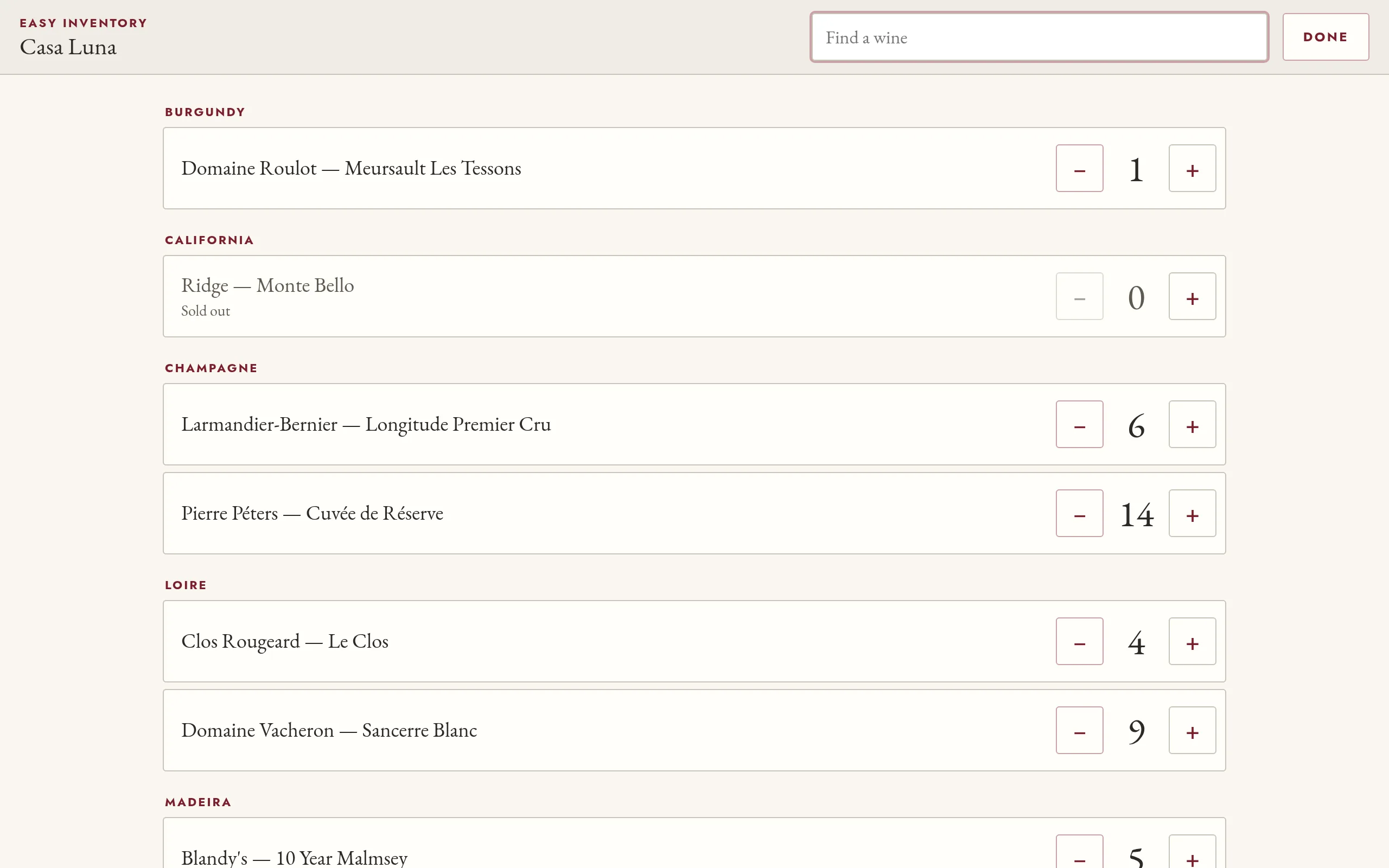
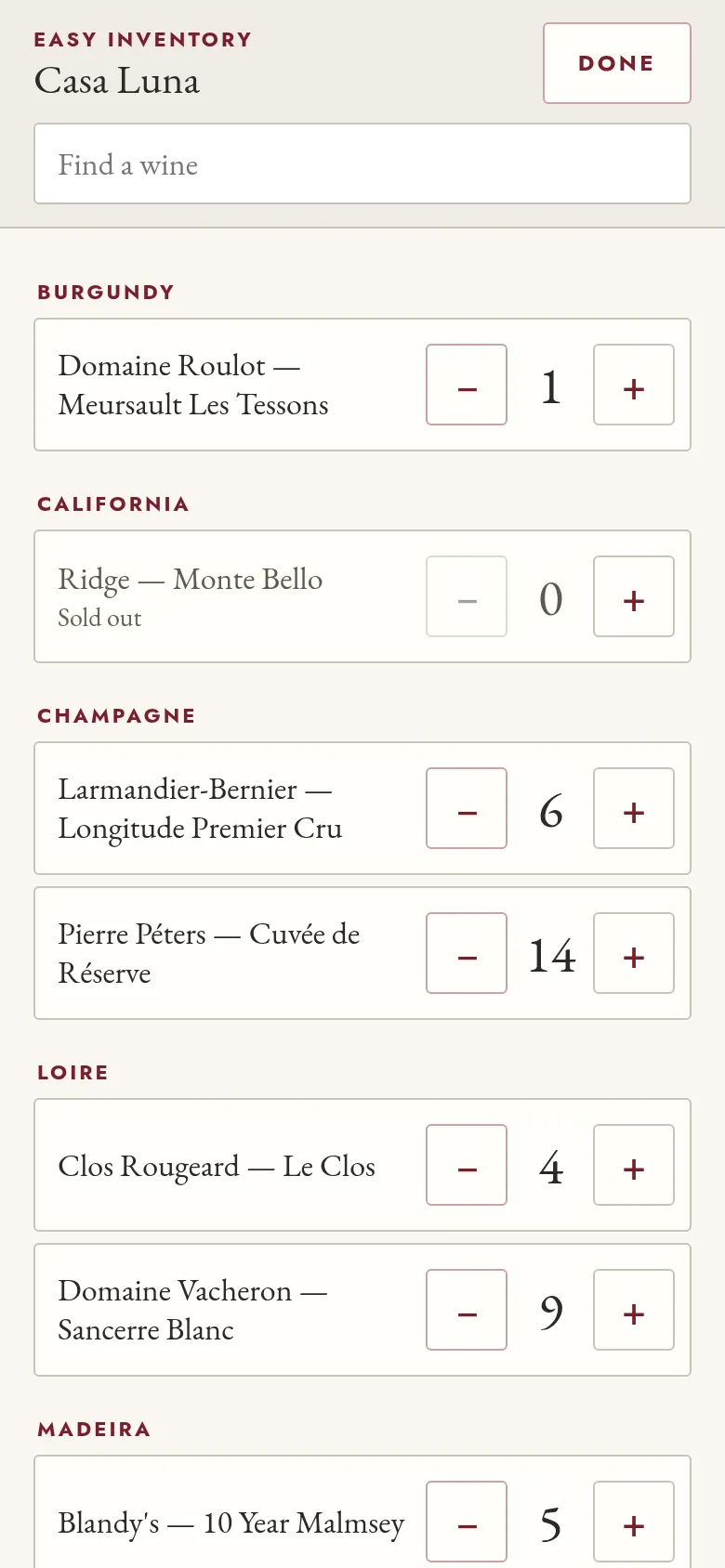
- Press Easy Inventory.
- Type in Find a wine to go straight to one.
- Press plus or minus. A wine at zero reads Sold out. The wines come in the same groups and order as Inventory, so Group by there (Region, Style, Producer, or By bin) sets the order here too.
- A wine with a glass price also has Glass. It pours one glass from the open bottle; when that bottle runs dry, it opens the next and takes one off the count. The row shows what is left open, such as Open ¾. Glass waits until the wine has bottles or an open one.
- After a minus, the line at the foot offers Reason and Undo. A bottle that did not sell? Press Reason, then Broken, Corked, Comped or Staff; Sold takes a reason back off. It is optional; a minus with no reason counts as sold, and the reason shows in the wine’s Activity and in the report.
- Press Done. If anything came off, the shift total shows bottles sold, glasses and each reason since the shift began; press Back to the wines to carry on, or Finish to end the shift. A shift that took nothing off closes at once. The shift carries through a reload, and another device’s changes show here within half a minute.
- Sales from a POS does not check the glasses tapped here. If you bring glass sales in from a POS, leave Glass alone, or the glasses come off twice.
- On a tablet held across, or a window 1000 pixels or wider, the wines sit in two columns, read down the first and then the second. On a touch screen of tablet size, minus, plus, Glass and Done are larger. To keep a tablet on Easy Inventory for a shift, use the tablet’s own lock: Guided Access on an iPad, or screen pinning on Android.
- Press Easy Inventory.
- Type in Find a wine to go straight to one.
- Press plus or minus. A wine at zero reads Sold out. The wines come in the same groups and order as Inventory, so Group by there (Region, Style, Producer, or By bin) sets the order here too.
- A wine with a glass price also has Glass. It pours one glass from the open bottle; when that bottle runs dry, it opens the next and takes one off the count. The row shows what is left open, such as Open ¾. Glass waits until the wine has bottles or an open one.
- After a minus, the line at the foot offers Reason and Undo. A bottle that did not sell? Press Reason, then Broken, Corked, Comped or Staff; Sold takes a reason back off. It is optional; a minus with no reason counts as sold, and the reason shows in the wine’s Activity and in the report.
- Press Done. If anything came off, the shift total shows bottles sold, glasses and each reason since the shift began; press Back to the wines to carry on, or Finish to end the shift. A shift that took nothing off closes at once. The shift carries through a reload, and another device’s changes show here within half a minute.
- Sales from a POS does not check the glasses tapped here. If you bring glass sales in from a POS, leave Glass alone, or the glasses come off twice.
- On a tablet held across, or a window 1000 pixels or wider, the wines sit in two columns, read down the first and then the second. On a touch screen of tablet size, minus, plus, Glass and Done are larger. To keep a tablet on Easy Inventory for a shift, use the tablet’s own lock: Guided Access on an iPad, or screen pinning on Android.
A full count, one hand
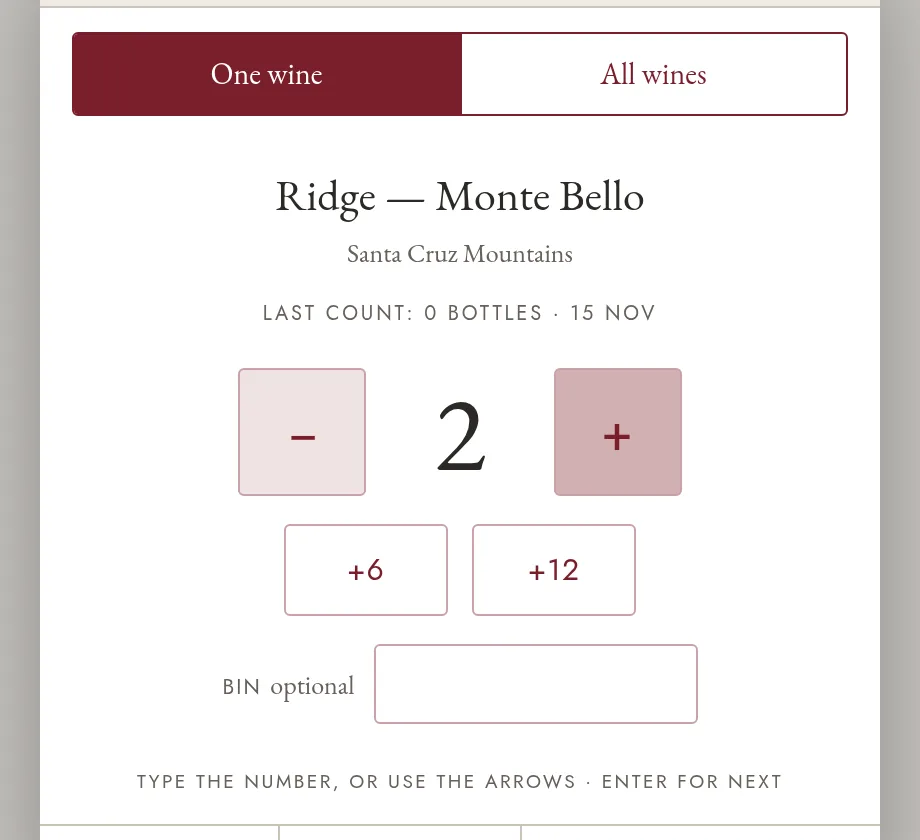
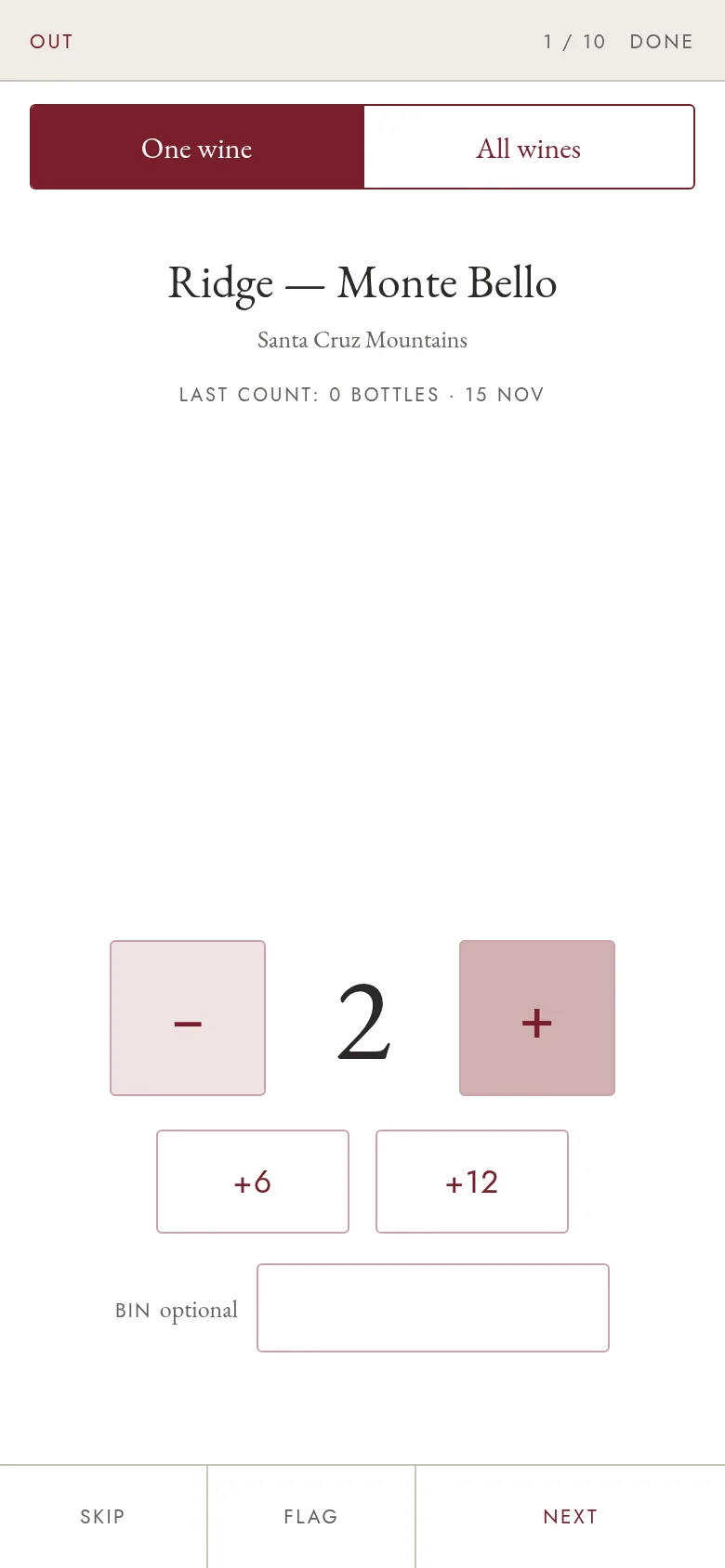
A stocktake with a phone in one hand: one wine fills the screen, and the thumb does the rest.
- Press Full count, beside Easy Inventory.
- Press minus or plus; hold one to run. +6 and +12 add a half case and a case. On a keyboard, type the number. A wine poured by the glass also has an Open bottle row; see Open bottles.
- Press Next. Skip leaves a wine as it was.
- Under the count, the optional Bin box shows where the wine lives. Type a bin there in the same stop, one-handed; bins you have typed before are offered. It saves when you leave the box or press Next, and typing in it never changes the count.
- A bottle missing, or out of place? Press Flag, between Skip and Next. The wine stays on the screen, and the flag stays until you turn it off on the wine’s page. Flagged wines print from Export, Print; see Spreadsheets and count sheets.
- In Par mode, the card also shows the par, and the bottles on order, under the last count.
- All wines, at the top, lists every wine in the count; type in Find a wine and tap one to go straight to it. Next carries on from there, and the wines passed over still come up before the end.
- Press Done when you like; a number on the screen is kept. The next time, choose Carry on to pick up at the same wine, or Start over; every count saved with Next is kept either way.
- The last card lists what moved, the wines flagged, and when the full count before it was finished for this establishment.
- Press Full count, beside Easy Inventory.
- Press minus or plus; hold one to run. +6 and +12 add a half case and a case. On a keyboard, type the number. A wine poured by the glass also has an Open bottle row; see Open bottles.
- Press Next. Skip leaves a wine as it was.
- Under the count, the optional Bin box shows where the wine lives. Type a bin there in the same stop, one-handed; bins you have typed before are offered. It saves when you leave the box or press Next, and typing in it never changes the count.
- A bottle missing, or out of place? Press Flag, between Skip and Next. The wine stays on the screen, and the flag stays until you turn it off on the wine’s page. Flagged wines print from Export, Print; see Spreadsheets and count sheets.
- In Par mode, the card also shows the par, and the bottles on order, under the last count.
- All wines, at the top, lists every wine in the count; type in Find a wine and tap one to go straight to it. Next carries on from there, and the wines passed over still come up before the end.
- Press Done when you like; a number on the screen is kept. The next time, choose Carry on to pick up at the same wine, or Start over; every count saved with Next is kept either way.
- The last card lists what moved, the wines flagged, and when the full count before it was finished for this establishment.
Bins
A bin is where a wine’s bottles live: W3, Rack B-12, the walk-in. It is optional, it is one line of text, and it never prints on a list.
- Open the wine’s page. Under Details, press Bin, type where the bottles are, and press Save. Bins you have typed before are offered as you type; clear the field to take a bin off.
- The bin shows under the wine’s name in Inventory, and under the count at the top of the wine’s page.
- Under More, Order, choose By bin. Inventory is grouped bin by bin, in the order a person reads them, so B-2 comes before B-12; the wines with no bin come last. Each establishment keeps its own order.
- By bin, the count sheet and Full count walk the bins in the same order, with the bin as the heading. In any other order, the count sheet has a Bin column, but only once a wine has a bin; an establishment with no bins prints the sheet as before.
- Type a bin in Find a wine in this inventory to see what is in it.
- The spreadsheet gains a Bin column. Importing a spreadsheet reads a column headed Bin, Location or Rack.
Open bottles
A wine poured by the glass usually has a bottle open behind the bar. Inventory can count it in quarters, beside the whole bottles.
- A wine with a glass price counts an open bottle unless you say otherwise. To change it, open the wine’s page and, under Pouring, press Counts an open bottle.
- In Full count, such a wine has an Open bottle row under +6 and +12: None, ¼, ½ or ¾. It starts at None on each wine, and it is saved with Next.
- The count stays whole bottles. The open part shows under the count on the wine’s page, as Open bottle: ½, and in the last count, as 2 ½ bottles.
- In Easy Inventory, minus takes a whole bottle and Glass pours one glass from the open bottle; see Easy Inventory on a shift. Sales from a POS pour glasses the same way; see Sales from a POS.
- The spreadsheet gains an Open column, and value at cost counts the open part. To order still counts whole bottles.
Order, deliveries, imports, pour and 86
Inventory’s More menu holds the order, and two items that open a step further in. In each, the line at the top, or Esc, goes back.
- Order: By region, By producer, A to Z or By bin, kept for each establishment. See Bins.
- Settings, for this establishment:
- Deliveries: Count changes only or Log bottles received. See Count history and deliveries.
- Pour by the glass: see Sales from a POS.
- 86 a wine when its count reaches zero: off unless you turn it on; counting the wine back in brings it back.
- Notices: a dated list of what needs attention; see Notices. The number on More counts the new ones.
- Import: Import a spreadsheet (see Bring in a spreadsheet) and Import sales from a POS (see Sales from a POS).
Easy or Par is not here; it is in the establishment’s menu, under its name. See Easy or Par.
Low and out, in the editor
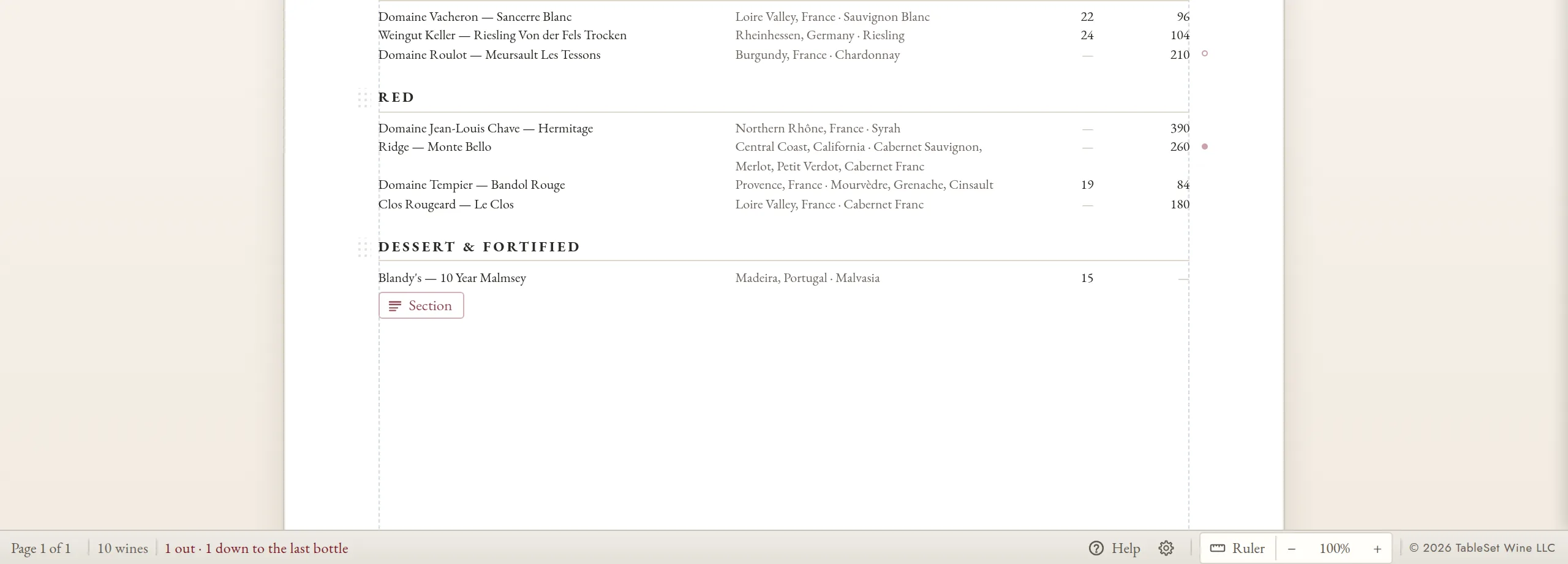
A wine down to its last bottle gets a hollow ring in the margin of the editor; a wine that is out gets a filled dot. The status bar counts both. The marks never print, and TableSet does not 86 a wine on its own unless you turn that on under More, Settings.
Low and 86’d: what to reorder
The Low and 86’d tab in Inventory lists the wines that need attention: low, counted to zero, or 86’d on a list. Its red number counts them, and it updates on every device of the establishment.
- Low in Easy mode: open a wine’s page and set Reorder at, such as 3. When the count falls to 3, the wine reads Low; time to reorder, its heading counts it, and it joins the tab. Left empty, a wine shows only when it runs out.
- Low in Par mode: a wine below par, as on the order sheet.
- In Easy Inventory, a wine at its Reorder at reads Reorder, and the line at the foot says time to reorder as the bottle comes off.
- To take a wine off the lists by itself when it runs out, turn on 86 a wine when its count reaches zero under More, Settings. It is off unless you turn it on. When it happens, the line at the foot says so, such as 86’d on 2 lists; Undo puts the bottle back and the wine back on the lists.
- In Easy mode, Export, Print, Print a reorder list prints the low and sold-out wines by bin, with the count and Reorder at. Par mode has the order sheet instead.
- More, Notices keeps a dated list of the same moments, with slow movers and bottles moved in; see Notices.
Notices
Notices is a dated list of what needs attention in this establishment, read from its record of changes. Nothing is sent by email or to a phone; it is all in the app.
- Press More, then Notices. A number on More counts the new notices; with none, the line reads Nothing new.
- A notice is made when a wine falls to its Reorder at (below par, in Par mode), runs out, has bottles moved in from another establishment, or goes without a sale for the period under Slow after: 30, 60 or 90 days.
- A sale is a minus in Easy Inventory with no reason, a glass, a sale from a POS, or a Full count that found fewer bottles. A reason, a delivery, a move or a number typed in is not a sale.
- Press Seen on a notice to move it under Seen, or Mark all as seen. Seen is kept with the establishment, so it is the same on every device and for everyone who works in it.
- PDF prints the notices, new and seen, with the date, the wine, its bin and its count. The record of changes keeps 120 days, so notices do too.