Help · Inventory
Ordering and value
Easy or Par, how it all fits together, cost and value, par, the order sheet and count history.
Easy or Par
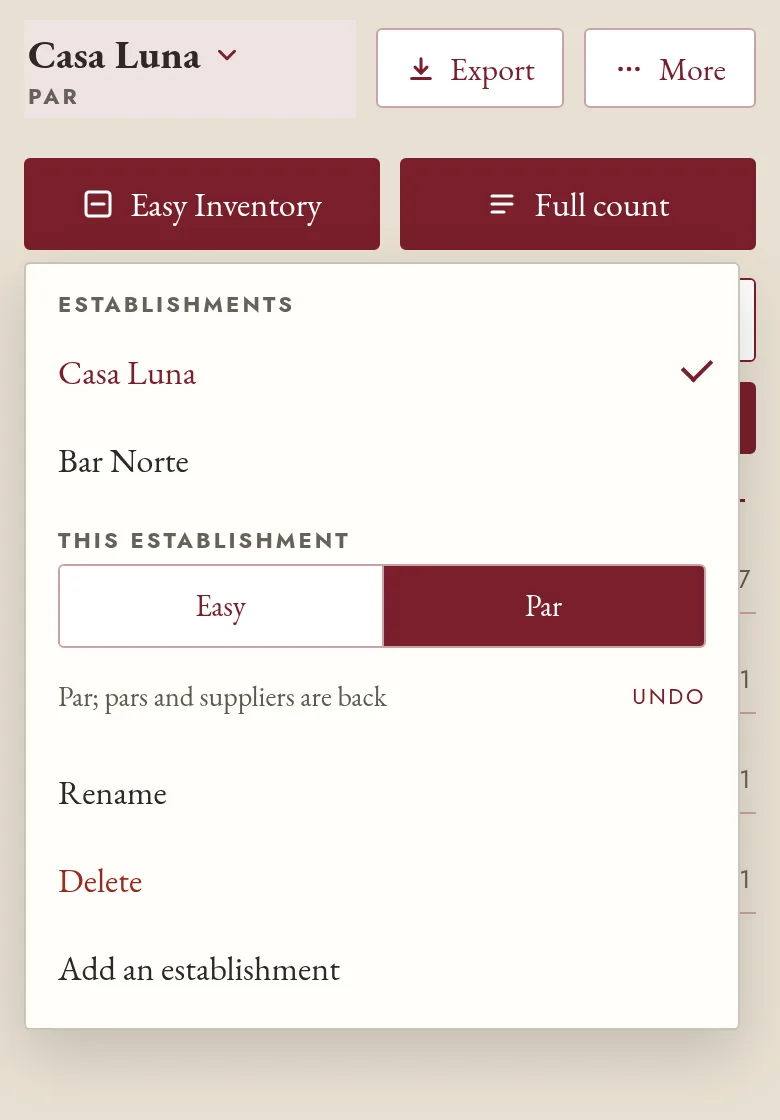
Each establishment keeps inventory one of two ways. Both read the same count, and you can switch at any time: press the establishment’s name at the top of Inventory and choose Easy or Par. The mode is written under the name. Switching never changes a count, a par or the record of changes, and the line that confirms it has Undo.
- Easy. Count as you go. Press minus when a bottle sells and plus when bottles come in. There is no par to set and no order sheet.
- Par. The traditional method: a par and a supplier on each wine, a Below par mark in the list, and an order sheet by supplier. See Par and the order sheet.
- The first time you open an establishment’s Inventory, it asks which one, with a column for each. An establishment where a par was already set starts in Par and is not asked.
- Activity. Every change to a count is kept, with its day and time: each minus and plus, each Full count that changed it, each delivery and import. Open a wine’s page and press Activity, under Count, to see the latest. It is kept for 120 days, on every device signed in to the establishment.
- Easy. Count as you go. Press minus when a bottle sells and plus when bottles come in. There is no par to set and no order sheet.
- Par. The traditional method: a par and a supplier on each wine, a Below par mark in the list, and an order sheet by supplier. See Par and the order sheet.
- The first time you open an establishment’s Inventory, it asks which one, with a column for each. An establishment where a par was already set starts in Par and is not asked.
- Activity. Every change to a count is kept, with its day and time: each minus and plus, each Full count that changed it, each delivery and import. Open a wine’s page and press Activity, under Count, to see the latest. It is kept for 120 days, on every device signed in to the establishment.
How it all fits together
Keeping wine in stock is a loop: count what you have, compare it with what you want, order the difference, take in the delivery, and look back at what sold. Each part is optional. Start with a count and add the rest when you need it.
- Count. A Full count tells TableSet what is on the shelf. Easy Inventory keeps that count current during service, a bottle at a time. Or let the POS do it: under More, Import, Import sales from a POS takes off the bottles and glasses it sold.
- Set a par. This step belongs to Par mode: press the establishment’s name and choose Par. Then, on a wine’s page, Par is how many bottles you want after a delivery: 12 for a wine that pours steadily, 2 for a rare one. A wine with no par is never on the order sheet.
- See what is low. In Inventory, a wine under its par says Below par, with the bottles to order, and the mark moves as the count does.
- Order. Press Export, Ordering, then Print an order sheet: what to order, grouped by supplier, to read to each rep. TableSet never orders anything itself.
- Take in the delivery. Add the new bottles with plus. Or, with Log bottles received under More, Settings, press Received on the wine’s page, so TableSet can tell a delivery from a recount.
- Look back. Each Full count is kept with its date. The spreadsheet shows what changed since the last one and, with deliveries logged, how much was used; the inventory value sheet shows what the stock was worth. In the report, Variance shows what a Full count found that nothing accounted for.
Two helpers, both optional: a bin puts a Full count in the order you walk the cellar, and an open bottle counts the bottle behind the bar, so value is right.
Two ways to work. On paper: print a count sheet, count, then print an order sheet, once a week. Live: count with Easy Inventory as you pour, and print the order sheet whenever you like. A live count drifts with breakage, comps and a missed tap, so do a Full count each month or so to bring it back in line with the shelf.
With a POS. Import its sales file each week or so; the bottles and glasses it sold come off the counts. Under Export, Download, For a POS or accounting system fills in the POS’s own item file with the counts, and makes the month-end journal for the bookkeeper. A Full count each month still brings it all back in line with the shelf.
Where to start. Do one Full count, then set a par and a supplier on your ten or twenty busiest wines.
Cost and value
What the house paid for a bottle is kept apart from the wine. Owners and editors see it; counters do not, and it never prints on a list or a count sheet.
- Open the wine’s page. Under Details, press Cost per bottle, type what one bottle cost, and press Save. Clear the field to take a cost off.
- The spreadsheet gains three columns: Cost, Markup (the bottle price divided by the cost) and Value at cost (the cost times the bottles on hand).
- Print the inventory value, under Export, Print, totals the bottles on hand at cost and at list price. A wine with bottles but no cost is counted, and the page says how many there are.
- Importing a spreadsheet reads a column headed Cost, Unit cost, Bottle cost, Wholesale or FOB. A case cost is left out, since it is twelve bottles.
- Signed in, costs go to their own place on the server, which only owners and editors can read. Signed out, they stay on this device and travel in a backup file.
- Owners and editors also see, under Pouring, Cost per glass (the cost divided by the glasses in a bottle) and Pour cost (the cost per glass over the glass price, such as 22%). Under Details, Bottle pour cost is the cost over the bottle price. Each line says what it still needs, such as Add a glass price to see it. Counters do not see them.
- The spreadsheet gains Cost per glass, Pour cost % and Bottle pour cost %; the report can show Cost per glass and Pour cost under Columns.
Par and the order sheet
A par is the number of bottles you want on hand after a delivery. TableSet never orders anything; it prints a sheet for you to read to a rep, or to send.
Par belongs to Par mode. To use it, press the establishment’s name at the top of Inventory and choose Par. Going back to Easy hides par, supplier, the below-par mark and the order sheet again; pars already typed are kept. See Easy or Par.
- Open the wine’s page. Under Ordering, press Par, type a whole number of bottles, and press Save. Clear the field to take a par off.
- Press Supplier to name who you buy the wine from. Names you have typed before are offered as you type.
- In Inventory, a counted wine below its par says so under its name, as Below par; order 8, and changes as the count does. A heading counts the wines below par inside it, so a closed one still shows them.
- Press Export, Ordering, then Print an order sheet. Every counted wine below its par is listed under its supplier, with what is on hand, the par and the bottles to order; wines with no supplier come last.
- A wine with a par that has not been counted is left off, and the sheet says how many there are. A wine put away is left off too.
- After the call or the email to the rep, press Export, Ordering, then Mark the order as placed, and press each supplier you ordered from. Those bottles go on order with the date, and the next sheet does not ask for them again. Press a supplier a second time to undo.
- A wine short of par but fully on order says On order: 8 instead of Below par. Its page has an On order line under Ordering; press it to change the bottles, or clear the box to take the order off.
- When the delivery comes, put it away and count it, or add it with plus; bottles coming in come off what is on order by themselves. On the On order line, Arrived adds the bottles typed to the count and logs them as a delivery.
- Reorder at, under Par, is optional. With it empty, a wine is ordered whenever it is below par. With a number, it waits until the count, with what is on order, falls to that number, then orders back up to par: reorder at 4, par 12. Some kitchens call that lower number par; here it is Reorder at, and par is the number ordered back up to.
- In the Par form, once there is a week of counts and the wine has sold, TableSet suggests a par: two weeks of bottles at the recent rate, from the last four weeks. Press Use to put it in the box, then Save; it is only a suggestion.
- The spreadsheet gains Par, To order, On order, Reorder at and Supplier. Importing a spreadsheet reads columns headed Par and Supplier, Distributor or Vendor.
Count history and deliveries
Each finished Full count is kept, with its date: the last twelve for each establishment, on every device signed in to it.
- The spreadsheet gains Previous count and Change. Right after a full count, Previous count is the full count before it; once a count has moved since, it is the last full count.
- Print the inventory value adds a line with the value at cost at the previous count, and its date.
- Under More, Settings, Deliveries is Count changes only unless you change it. A delivery is then just a higher count.
- With Log bottles received, each wine’s page has a Received line under Ordering, or under Deliveries in Easy mode. Press it, type the bottles that came in, and press Add; they are added to the count and logged with the date.
- The spreadsheet then also gains Received, the bottles logged since the previous count, and Usage: the previous count, plus what was received, less the count now.
The report
What happened to the bottles over a stretch of days: what sold, what went for another reason, what came in, and what a count put right. It reads the record of changes, so it needs nothing typed.
- Press Export, then Report, at the top.
- Choose the period: Today, 7 days, 30 days, Since the last full count or Between the last two full counts, the stretch variance is usually read over.
- The cards at the top give the totals. Below, each wine that changed, by region: Start, Received, Sold, Broken, Corked, Comped, Staff, Variance, Adjusted and End. Start, plus Received, less Sold and the reasons, plus Variance and Adjusted, is End.
- Variance is what a Full count found against what TableSet expected: −1 is a bottle missing that no sale, reason or delivery explains. Look first at heavy pours, a comp not given a reason, a delivery not marked, and miscounts. A wine with an open bottle shows quarters; a wine poured by the glass shows glasses beside them. A dash means no Full count measured that wine in the period; a wine counted for the first time has nothing to measure against, so it goes under Adjusted.
- Adjusted is every other change: a first count, a count typed on a wine’s page, a plus outside a delivery, an import. A negative number means fewer bottles than expected.
- Press Columns to show or hide each column: Bin, Item code, Flagged, Sold at list, and, for owners and editors, Cost, Not sold at cost, Variance at cost and End at cost; in Par mode, Supplier, Par and On order. Every wine, not only those that changed lists the whole Inventory. The choice is kept on this device.
- PDF prints the report as it is on screen, with a line for who prepared it. Spreadsheet saves the same columns as an Excel file.
- An open bottle counts in quarters in Full counts and sales from a POS; other changes count whole bottles. The record is kept for 120 days.