Help · Lists
Wines and sections
Typing a wine, sections, drinks, chapters, blank lines, flights, row tools, 86 and Fields.
Add a wine from the Wine Library
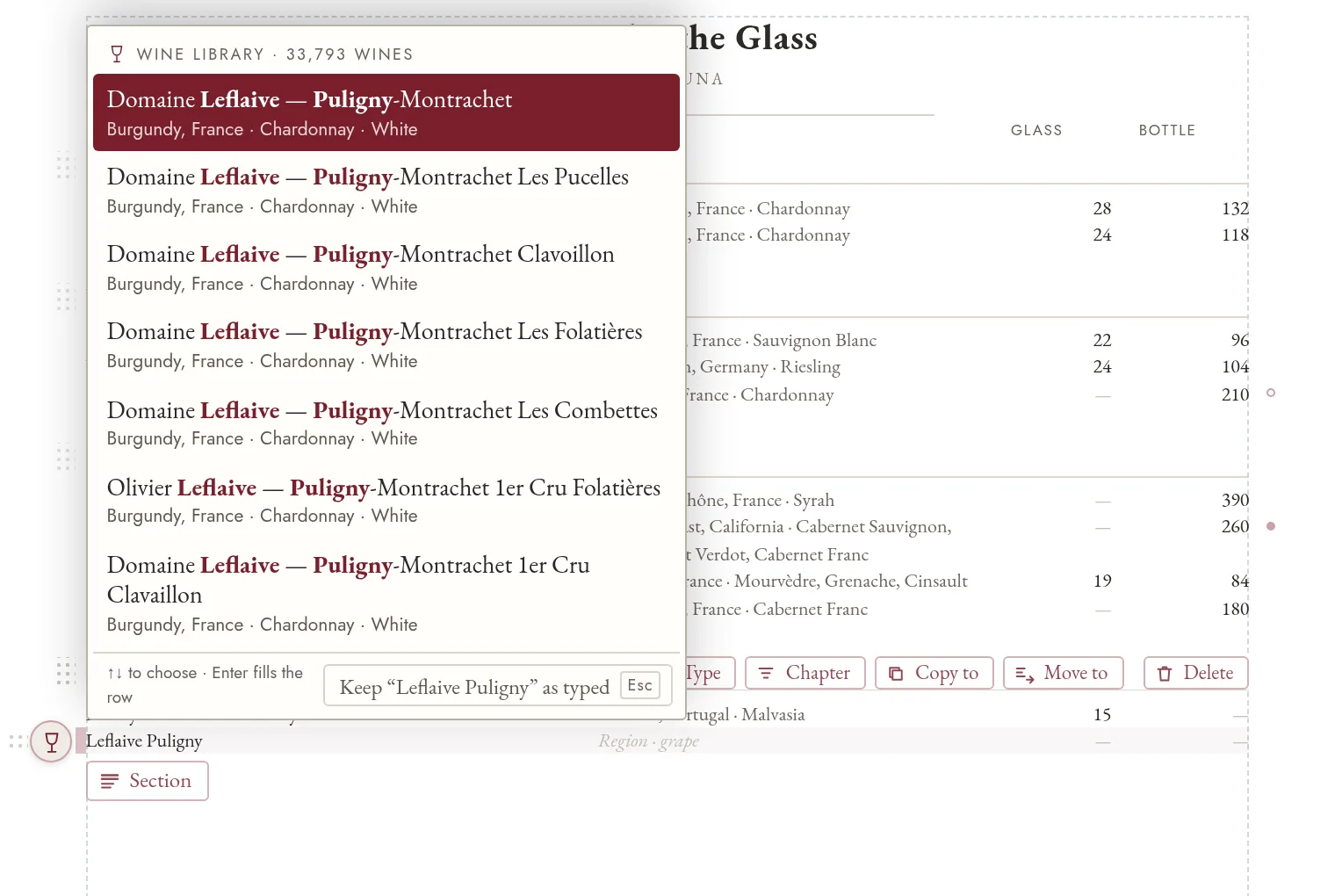
- Click an empty row, or press Enter at the end of a wine for a new one, and type a producer or a wine.
- After two letters the Wine Library offers matches. Use the arrow keys to choose one and press Enter.
- To keep exactly what you typed, press Keep as typed or Esc.
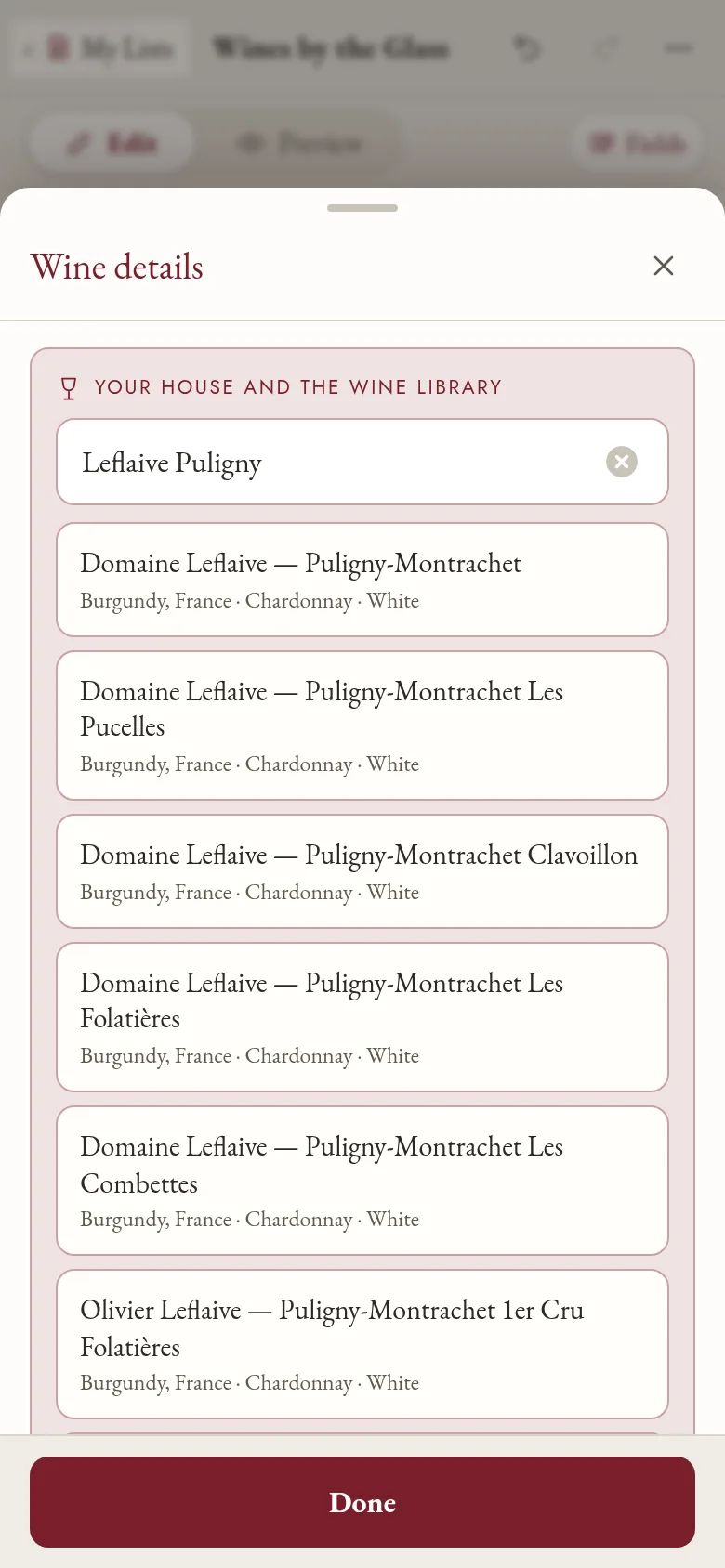
- Open a section and tap + Add wine.
- Type a producer or a wine in the search at the top, and tap a match.
- To keep exactly what you typed, fill in the fields below the matches instead.
Check what reaches the page
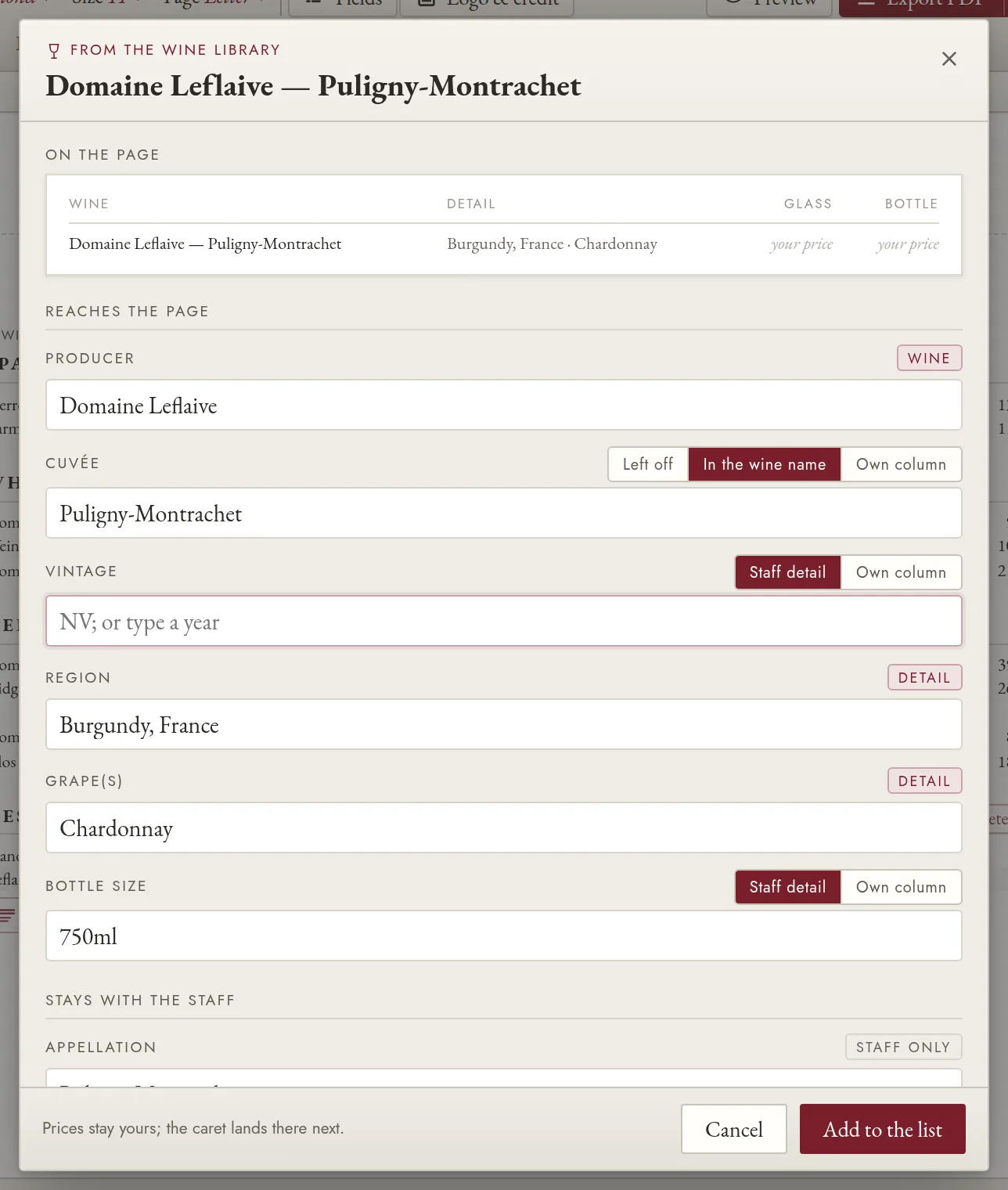
On the desk, choosing a match opens From the Wine Library, which shows the line as it will print.
- For each detail, choose where it goes; for the cuvée, Left off, In the wine name or Own column.
- Press Add to the list. The cursor lands in the price, which is always yours to set.
- For each detail, choose where it goes; for the cuvée, Left off, In the wine name or Own column.
- Press Add to the list. The cursor lands in the price, which is always yours to set.
Add wines on a phone
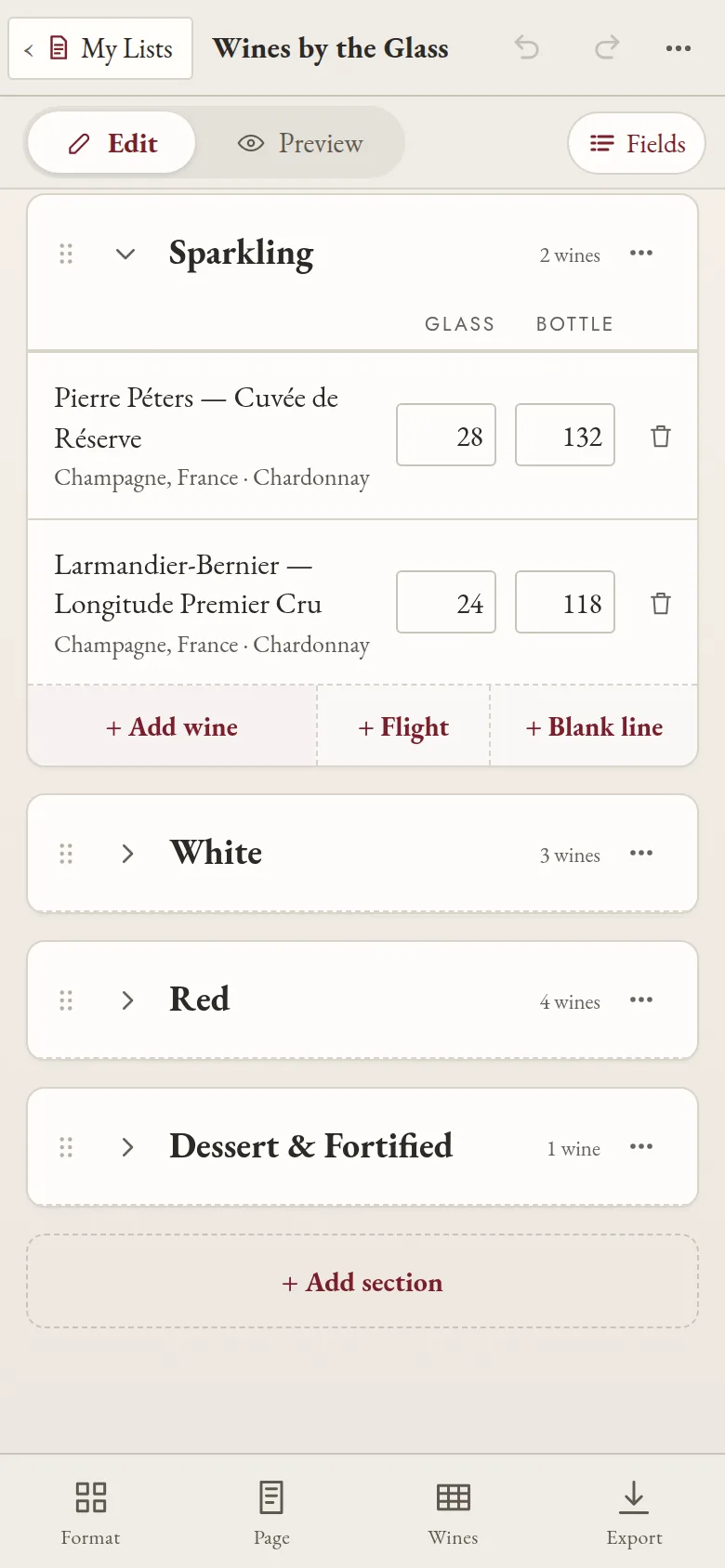
- In an open section, tap + Add wine.
- + Flight adds a flight instead.
- Type a price straight into its box, under Glass, Bottle or Price.
- Tap a wine to change it; the trash icon at its right removes it.
- In an open section, tap + Add wine.
- + Flight adds a flight instead.
- Type a price straight into its box, under Glass, Bottle or Price.
- Tap a wine to change it; the trash icon at its right removes it.
Sections and their tools
- Click into a section, and its tools appear at the right of its heading.
- Chapter adds a chapter heading above the section.
- Send to copies the section to another list, or moves it there.
- Delete removes the section and its wines.
- What a section lists follows its heading: name it Cocktails, Spirits, Beer or Digestifs and its rows take that drink.
- To add a wine, press Enter at the end of a line, or Insert row on the toolbar; Insert a flight is on the toolbar too.

- Tap ⋯ on a section card.
- Chapter heading adds a heading above the section.
- Copy to a list puts a copy of the section on another list.
- Move to a list takes the section to another list.
- Start on a new page moves the section to the top of the next page.
- Delete section removes it and its wines.
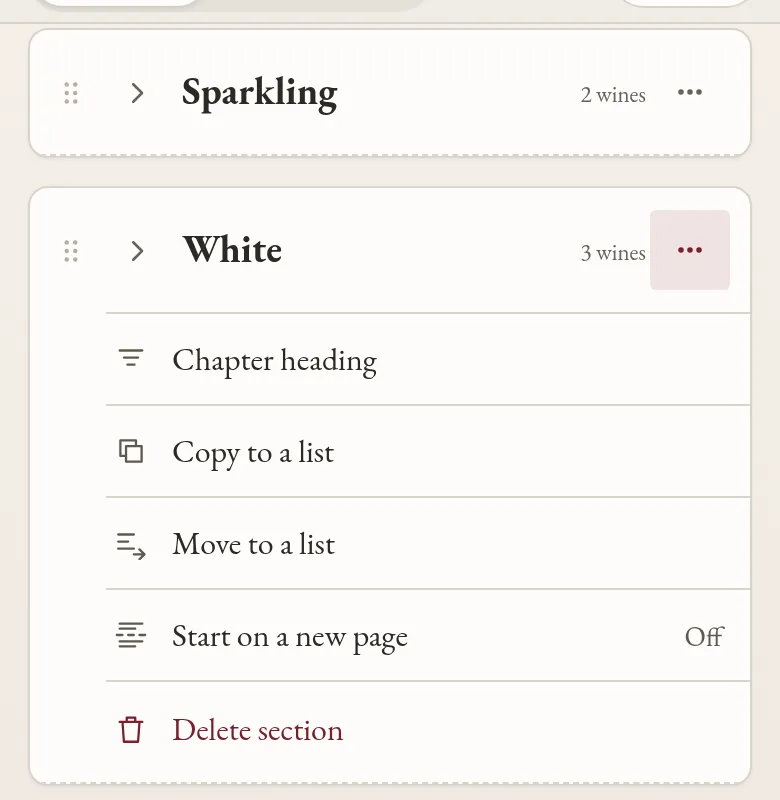
To add a section, use Section under the last wine on the desk, or + Add section on a phone. A new section has no name until you type one. Drag a section by its grip to move it.
Copy or move a section to another list
A section can go to another of your lists whole: its heading, wines, flights and blank lines, in order. The other list stays closed while you work.
- Click into the section, and press Send to among its tools; then choose Copy to another list or Move to another list.
- Choose the list. Lists are grouped by establishment, this one’s first.
- The section lands at the end of that list; a new list’s empty first section gives way to it. A move also takes it off this list.
- A line at the bottom says where it went, with Open to go there and Undo to take it back.
- On the section card, tap ⋯, then Copy to a list or Move to a list.
- Tap the list.
- The section lands at the end of that list. Move to a list also takes it off this one.
- The line that appears has Open and Undo.
The copy takes the other list’s template and look. Prices go by column: a Full List’s single Price column takes the bottle price. A column the other list does not print, such as Glass on a Full List, is kept with the wine but does not print there, and the line says so. A chapter heading stays behind. With no other list, the menu says so.
Cocktails, spirits, beer and digestifs
A section can list a drink in place of wine. Its rows take the fields that drink needs, and the Wine Library offers cocktails, spirits and beers as well as wines.
- Name the section for the drink: Cocktails, Spirits, Beer or Digestifs, or a word such as Whisky, Mezcal or Cider. When you leave the heading, the section takes that drink, and a line at the bottom says so. For a new one, add a section with Section, under the last wine, first.
- Type a drink as you would a wine; the matches come from the Library’s bar shelf.
- Each kind prints its own detail line: a cocktail, what goes in it; a spirit or a digestif, its style, region and age; a beer, its style, region and size.
- A spirits or digestif section in a template with two price columns prints a pour size over each, 1 oz and 2 oz to begin with. Click one to change it; a blank one prints nothing.
- Name the section for the drink, such as Cocktails, Spirits, Beer or Digestifs. For a new one, tap + Add section first.
- Tap + Add wine and type the drink; the matches come from the Library’s bar shelf.
- Each kind prints its own detail line: a cocktail, what goes in it; a spirit or a digestif, its style, region and age; a beer, its style, region and size.
A heading with none of these words keeps what the section had; a heading such as Wine cocktails lists cocktails. Changing a section’s kind keeps what you typed. Inventory counts wine only, so drinks stay out of it, and the Library shows no Add to Inventory button on a drink. Fields still sets what prints on the wines; on a drink, only the guest note follows it.
Chapter headings
A chapter is a large heading over a run of sections: Wine over Sparkling, White and Red; Spirits and Beer over the bar. It moves with the section it opens.
- Point at the heading of the section the chapter should open, and press Chapter among its tools.
- Type the chapter’s name. Enter moves on to the section heading.
- To take it off, click the chapter and press Remove; Undo brings it back.
- On the section card, tap ⋯, then Chapter heading.
- Type the name in the band at the top of the card.
- To take it off, tap the trash button in the band.
With Start on a new page on, the page breaks above the chapter, not between the chapter and its section. A chapter left blank shows Chapter name on screen and prints nothing.
Blank lines and the space above a section
A blank line is space the height of one line of the list, as in a word processor. It prints as space and nothing else, and it is never counted as a wine.
- Enter works as in Word. At the end of the title it adds a line under the title; at the start of a wine, a heading or the subtitle it adds a line above, and the cursor stays where it was.
- At the end of a wine, press Enter, then Enter again on the empty line. Each further Enter adds another.
- Backspace at the start of a line takes away the blank line above it. On a blank line, Backspace removes it and goes up; Delete removes it and goes down.
- The arrow keys stop on each blank line, which shows a blinking cursor and a ¶ in the left margin. Typing on a blank line in a section turns it into a wine.
- For a named step instead, turn on Spacing for each section in Settings, under Advanced. Each section’s tools then have Space, which sets the space above that section; the Section menu on the toolbar can clear them all at once.
- In an open section, tap + Blank line; it goes at the end of the section.
- To take one away, tap the trash button on its card.
- With Spacing for each section on, the section’s ⋯ menu has Space above.
A blank line keeps its space at the top of a printed page, as in a word processor. A section that starts its own page has no space above it there.
Flights
- Click a wine and press Insert a flight on the toolbar, or Ctrl+Shift+F. The flight takes in that wine and the next two.
- Name it: choose a suggestion such as Vintage Vertical, or type your own.
- Type the flight’s price at the right of its heading.
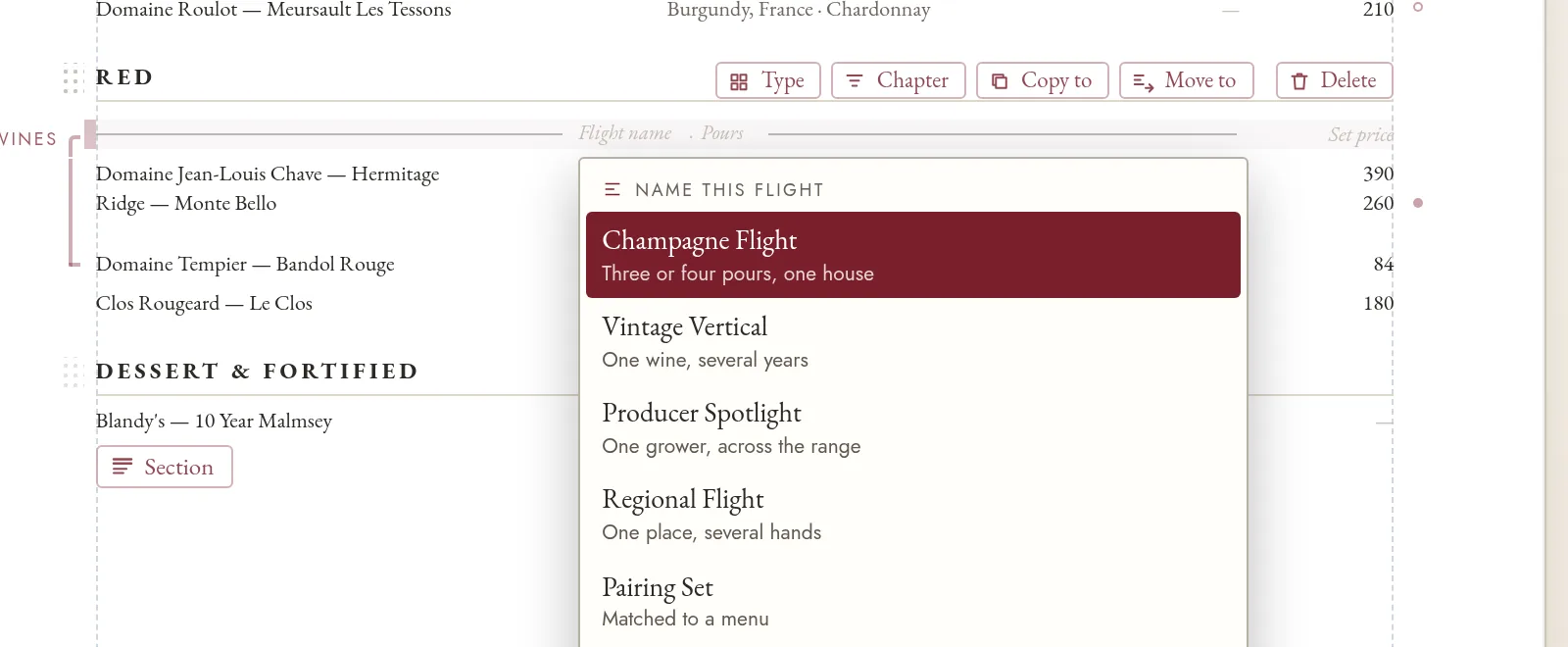
- Click a wine and press Insert a flight on the toolbar, or Ctrl+Shift+F. The flight takes in that wine and the next two.
- Name it: choose a suggestion such as Vintage Vertical, or type your own.
- Type the flight’s price at the right of its heading.
On a phone, + Flight in a section adds one.
Row tools
The second row of the desk toolbar works on the row where the cursor is.
- Undo and Redo come first; Undo is dimmed when there is nothing to take back.
- Find and replace opens a small panel at the top right; see Find and replace below.
- Mark 86’d strikes the wine through.
- Increase indent and Decrease indent, beside it, move a wine right or left.
- Rows opens a menu: insert a row below, delete this row, insert a column, delete this column. A line it cannot do says why.
- Duplicate row copies it.
- Insert a flight groups the wine and the next two.
- Start this section on a new page breaks the page before the section.

- Undo and Redo come first; Undo is dimmed when there is nothing to take back.
- Find and replace opens a small panel at the top right; see Find and replace below.
- Mark 86’d strikes the wine through.
- Increase indent and Decrease indent, beside it, move a wine right or left.
- Rows opens a menu: insert a row below, delete this row, insert a column, delete this column. A line it cannot do says why.
- Duplicate row copies it.
- Insert a flight groups the wine and the next two.
- Start this section on a new page breaks the page before the section.
To move a wine, drag the six dots beside it in the margin; near the top or bottom of the window the page scrolls with you, and Esc puts the wine back if you change your mind. Or press Alt+Shift+Up or Down (on a Mac, Control+Shift works too). On a phone, open the wine and use Move up or Move down under Position. A wine moves one place at a time and goes on into the next section; stepping past the edge of a flight takes it in or out of the flight.
On the desk, drag the line between two columns to change their widths. The line at the left of a price column moves that column, prices and all, leaving space at the right margin; drag it back to the right to close it.
Find and replace, pasting and selecting
The desk editor answers the keys and the mouse as a word processor does.
- Find and replace: press Ctrl+H or the Find and replace button, the third on the toolbar’s second row. Enter goes to the next match and Shift+Enter to the one before; Replace all changes every one at once, and one Undo takes them all back. Match case and Whole words narrow the search.
- Paste a list: copy several lines from a spreadsheet, an email or a document and paste them into a wine. Each line becomes a wine; a tab moves on to the next column, so prices land in their places. An empty line becomes a blank line.
- Select several wines: click a wine, then Shift and click another in the same section; or press Shift+Down at the end of a wine. The status bar says how many are selected. Delete, Mark 86’d, Duplicate row, Alt+Shift+Up or Down and Ctrl+C then work on all of them; Ctrl+C copies them as lines a spreadsheet can take.
- Right-click a wine for Cut, Copy, Paste, insert a row above or below, Duplicate, 86 and Delete. From the keyboard, Shift+F10 opens the same menu.
- Alignment: Ctrl+L, Ctrl+E and Ctrl+R set left, centre and right, as in Word.
On a phone, these stay with the wine’s own page and its buttons.
86 a wine and bring it back
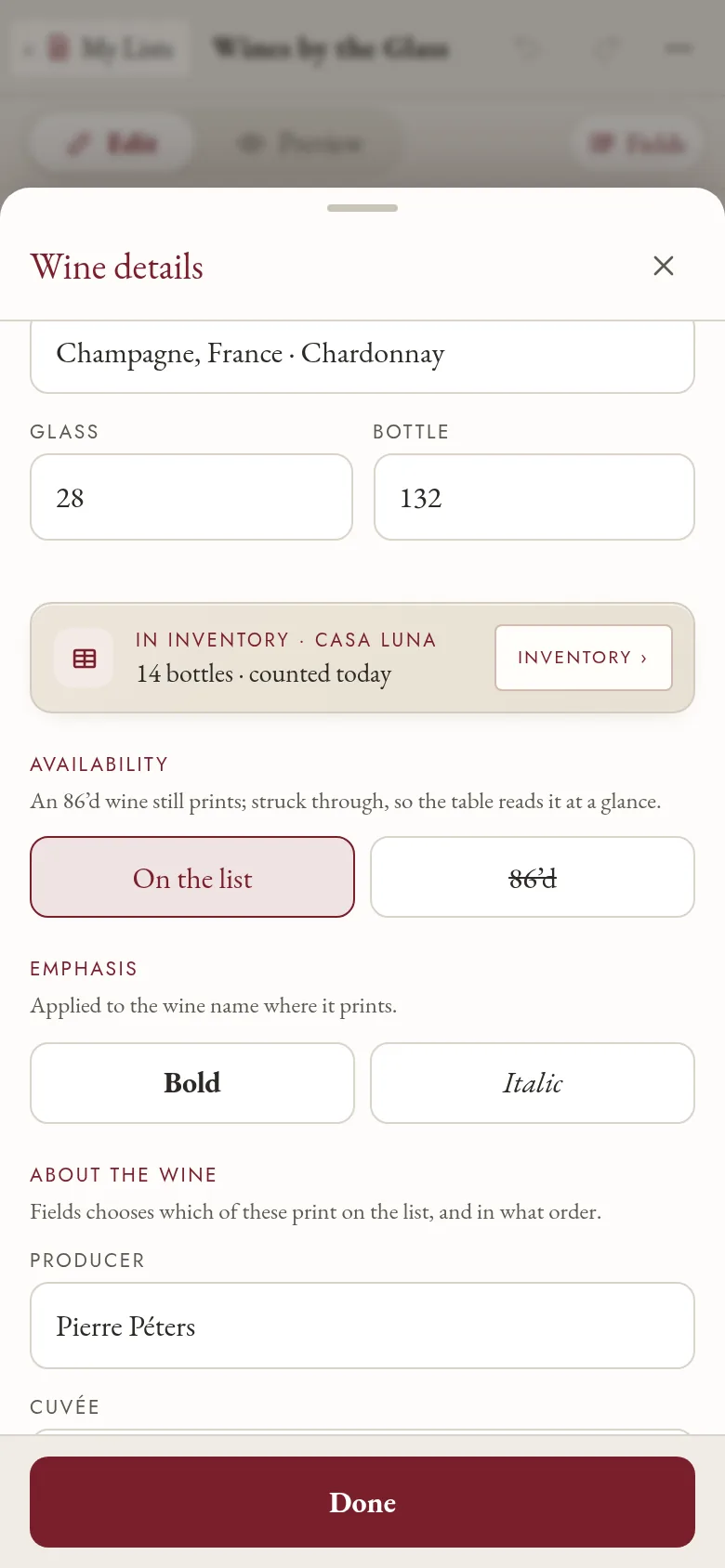
An 86’d wine stays on the list and still prints, struck through, so the table reads it at a glance.
- Click the wine.
- Press Mark 86’d on the toolbar, or Ctrl+Shift+X.
- Press it again to bring the wine back.
The picture for this is on the phone.
- Tap the wine.
- Under Availability, tap 86’d.
- Tap On the list to bring it back.
Choose what prints on each wine
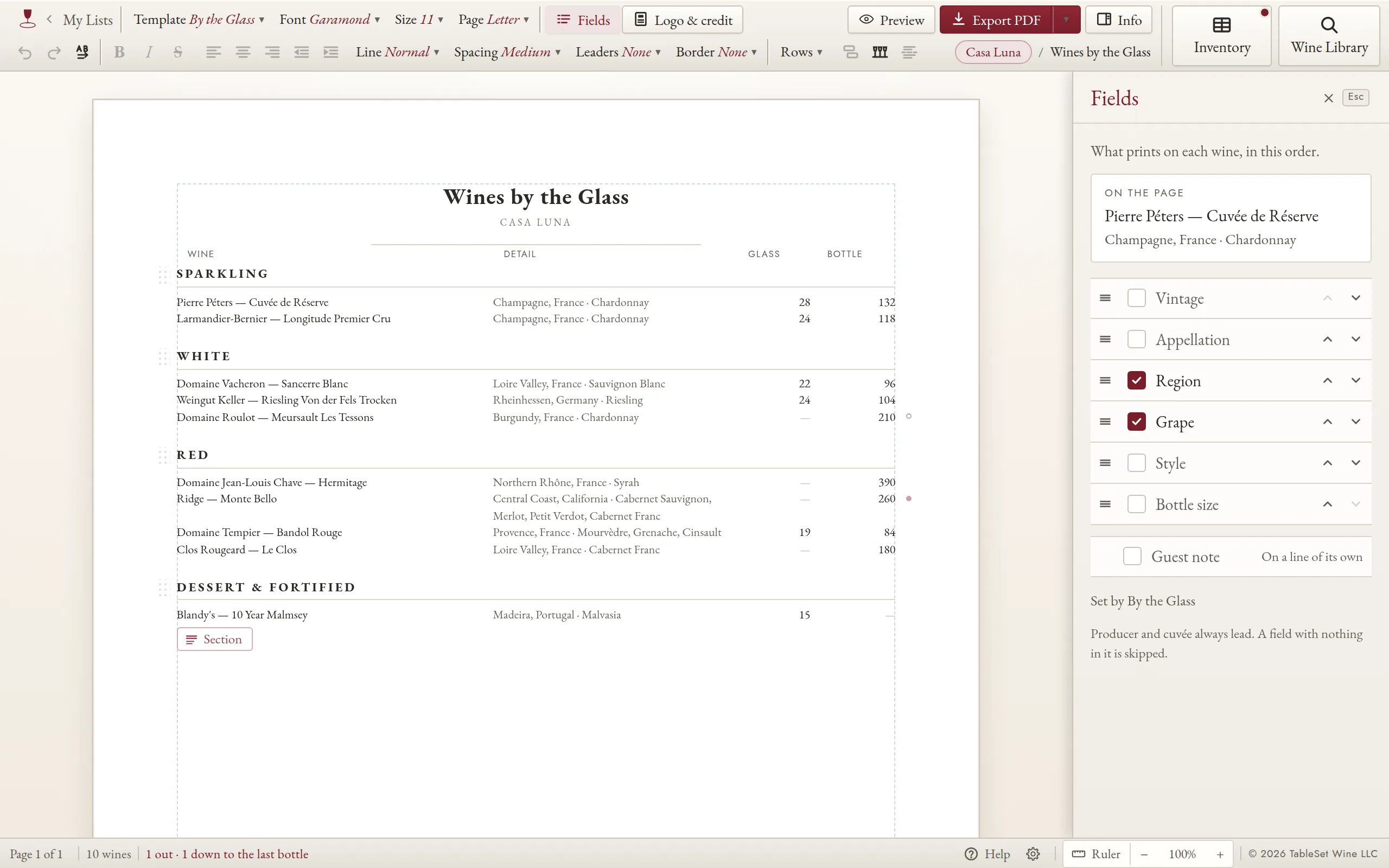
- Press Fields.
- Tick what prints, and move a field up or down with its arrows.
- Guest note prints on a line of its own.
- Tap Fields at the top right.
- Tick what prints, and move a field up or down with its arrows.
- Tap Done.
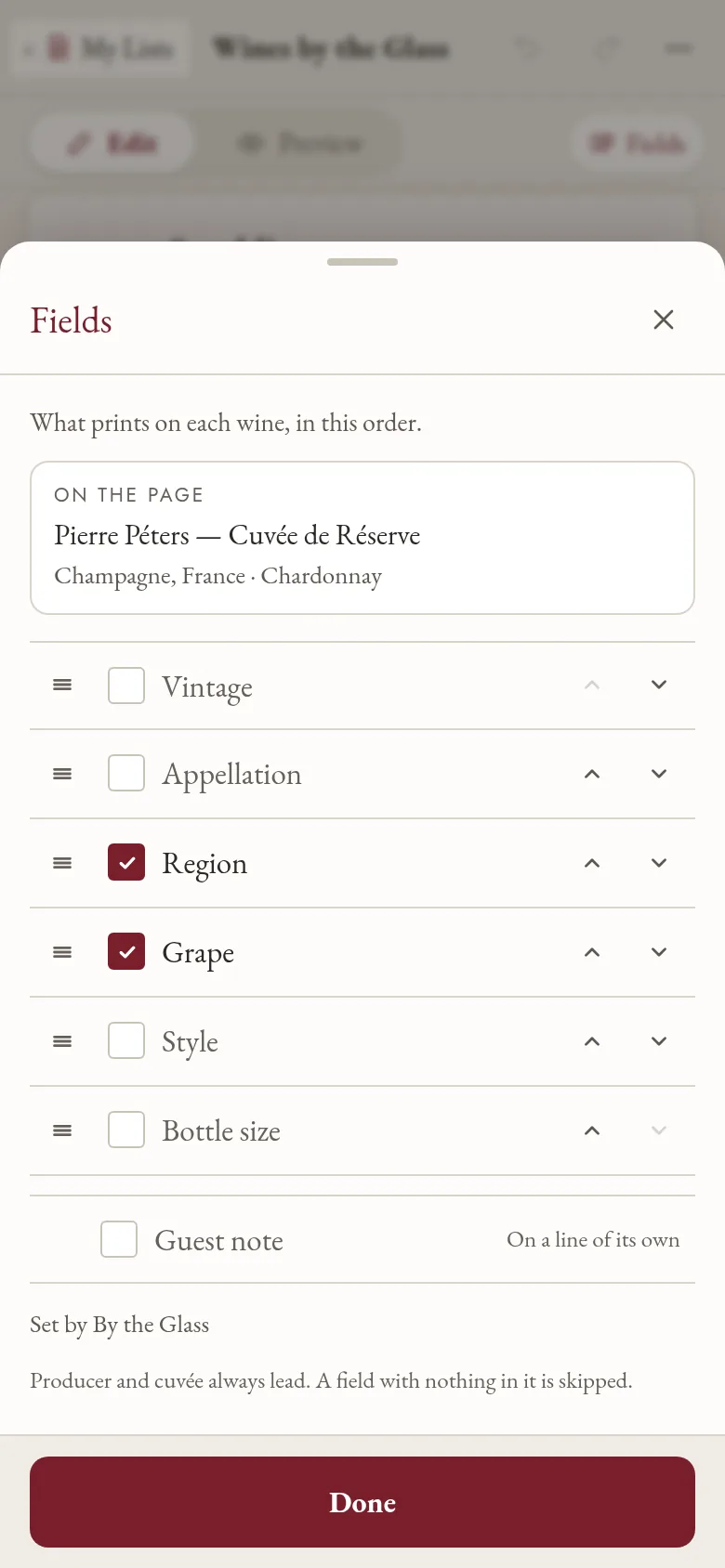
With Vintage on, NV when blank beside it prints NV for a wine without a vintage. The producer and the cuvée always lead, and a field with nothing in it is skipped.